
See the whole race
Timing, gaps, tyres and car condition stay visible across focused views.
F1 25 RACE CONTROLWINDOWS x64
Follow your F1 25 race with live timing, strategy and car condition. Replay the session afterwards to create race breakdowns with the data in view.
For your race. For the story after it.
WHY RACE CONSOLE
F1 25 already sends a rich telemetry feed. RACE CONSOLE puts it in a workspace you can read during the race and return to when you tell its story.
Timing, gaps, tyres and car condition stay visible across focused views.
Compare weather, fuel and tyre choices with the live stint and the field.
Connect by local UDP. Explore without an account or a telemetry upload.
Replay recorded sessions and capture focused views to explain overtakes, pit calls and changes in pace.
ACTUAL APPLICATION / ALL EIGHT VIEWS
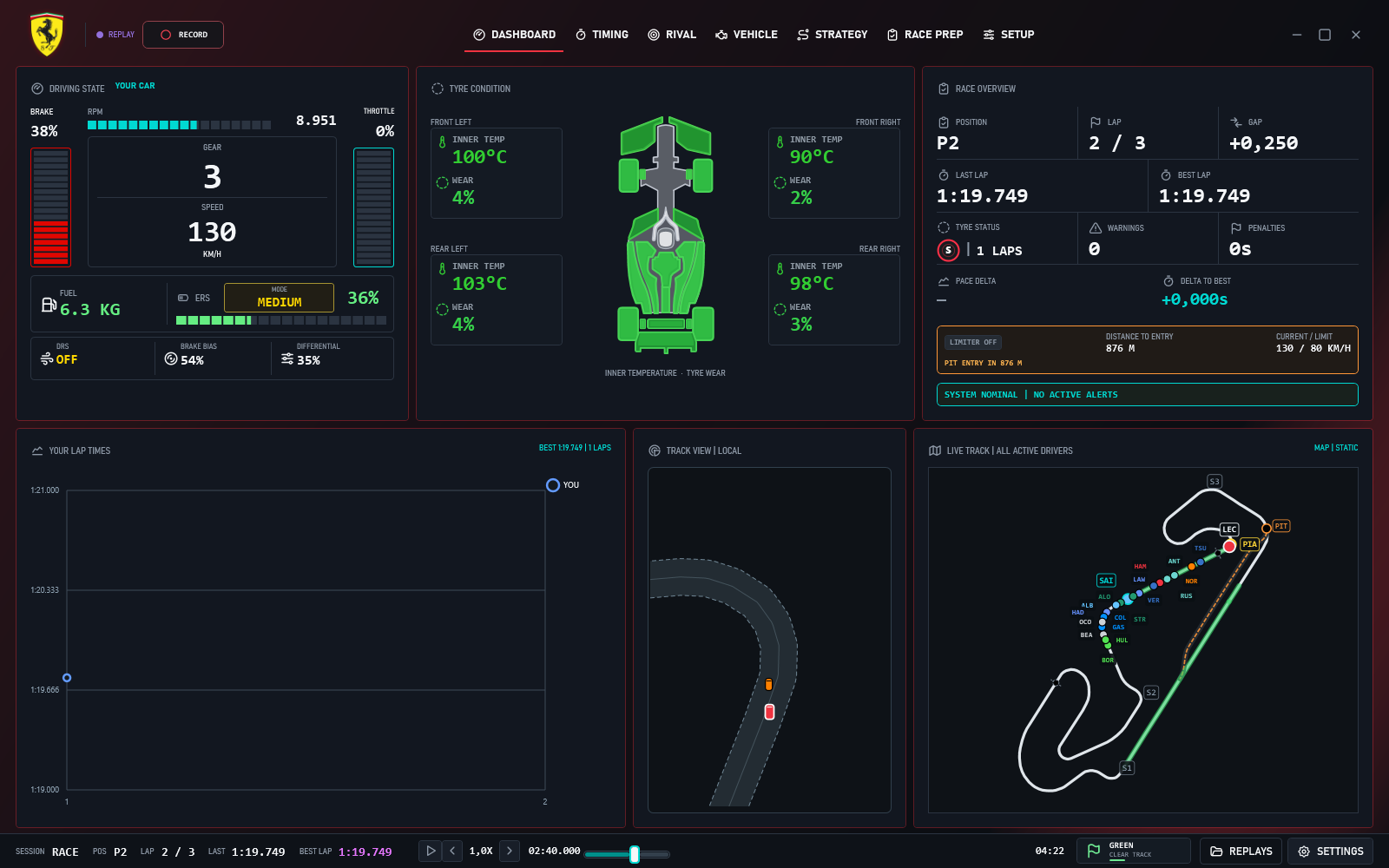
All eight views captured from the v0.184.0 general release, using a saved F1 25 race replay from Barcelona. Race Prep shows the separate planning workspace. Filter the views or open any capture at full size.
LIVE RACE
Speed, gear, ERS, tyre condition and fuel sit beside lap history, proximity radar and the live circuit map.
FOR CONTENT CREATORS
The race ends. The story keeps going. Revisit your saved telemetry, put the key moments in context and capture the app for your next video or stream.
RECORD THE SESSION
Save the telemetry while you drive. Load the recording afterwards to return to the moments you want to explain.
FIND THE MOMENT
Pause, seek and adjust replay speed. Switch between timing, strategy and car condition to show what was happening around a call.
CAPTURE YOUR STORY
Use your screen recorder to capture the app alongside your commentary. Show the data behind an overtake, a pit stop or a change in pace.
See it in the real app. The walkthrough below uses a saved Barcelona race recording. RACE CONSOLE records telemetry; capture video with your usual screen-recording software.
Watch the replay walkthroughREAL APPLICATION WALKTHROUGH
Follow a 48-second tour through all eight views, recorded directly from the app using a saved Barcelona race replay. This video was captured with v0.170.0; the gallery above shows the current release. Choose a chapter, or watch the uninterrupted Dashboard replay below.
HOW THE SIGNAL MOVES
RACE CONSOLE turns the game's local data stream into useful race views without adding another service to manage.
BEFORE YOU CONNECT
Compatibility, privacy and release information for the current general build.
The current stable build is made for F1 25 and the F1 25: 2026 Season Pack.
RACE CONSOLE runs on 64-bit Windows 10 (version 1809 or later) or Windows 11. The installer includes its runtime, so there is no separate .NET installation.
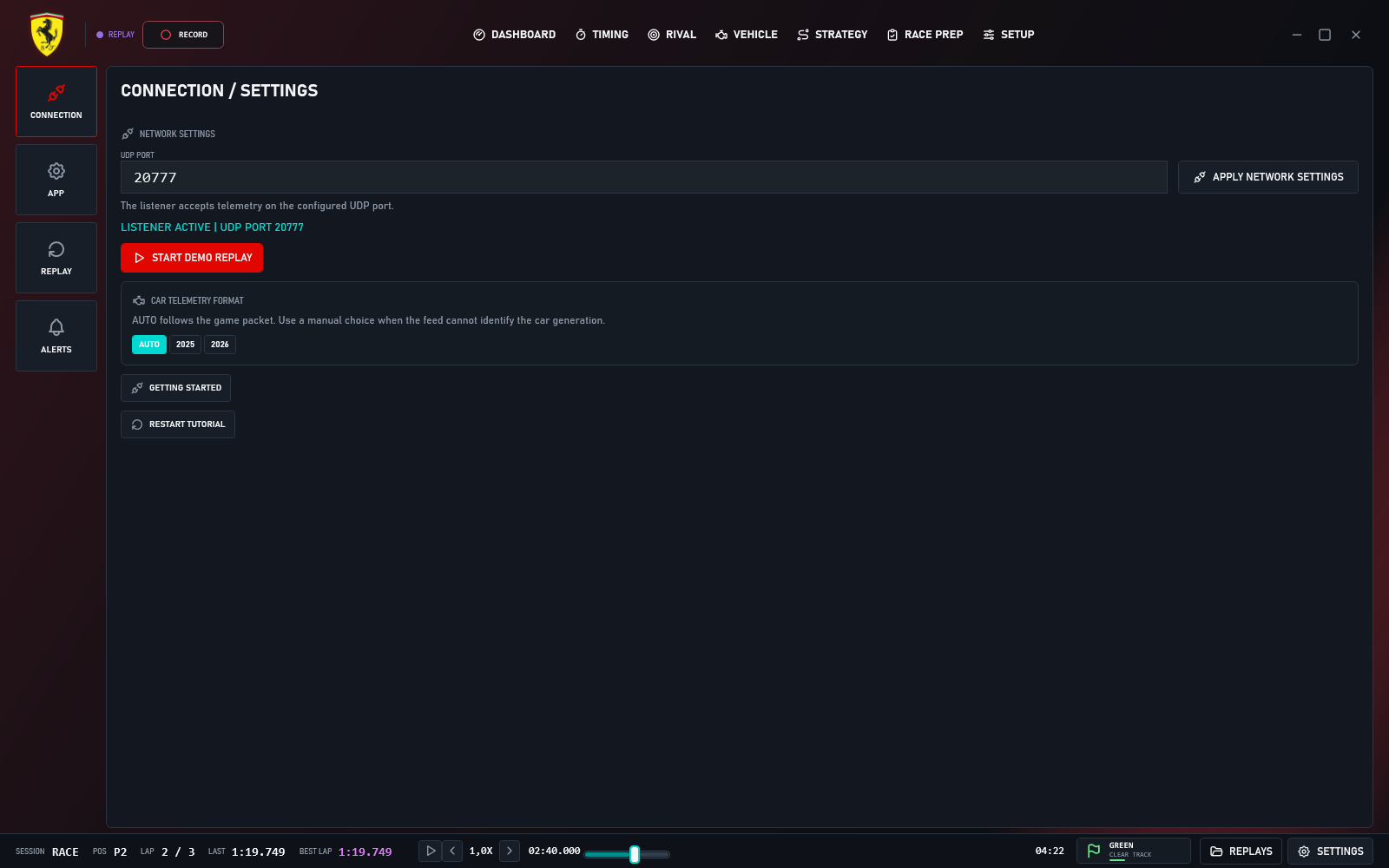
Enable UDP telemetry in F1 25 and use 127.0.0.1 with port 20777 for a same-PC setup. Select the matching UDP format in the game.
Yes. Select START DEMO REPLAY or press Ctrl + D to play the included race recording. You can pause, seek and change replay speed without starting the game.
Record your session telemetry in RACE CONSOLE, then load the saved recording to revisit the race. Pause, seek, change replay speed and switch views to explain timing, strategy and car condition. Use your usual screen-recording software to capture the app for your video or stream. Session recordings contain telemetry; they are not exported videos.
Game telemetry, settings and recordings stay on your computer. No account is required. Update checks contact GitHub, which receives normal connection information and the app version; no telemetry or recordings are uploaded. Startup checks can be disabled in Settings. Optional invited beta channels use an activation code and contact the protected update service for enrollment and updates.
New installations offer an optional guided tour after Getting started. It explains navigation, Dashboard, recording, Replays, Race Prep, Strategy and saved setup values beside the real controls. Setup saves values locally and does not change anything in the game. Skip it or finish at your own pace. Open Settings → Connection → Restart tutorial to take it again. Existing installations are not prompted after an update.
Open Settings → App → App & Updates to check manually or enable checks when the app opens. Press the available-update icon in the header to download and see the actual percentage. After checksum verification, it becomes an Install icon. Press Install separately when ready. Stop recording before installing; settings and recordings are kept.
The Pit Link Open Beta is available to everyone. In RACE CONSOLE, open Settings → App → Release channels, select Pit Link Open Beta, then download and install it when ready. Other private beta channels still require their own invitation. Each channel keeps its own settings, while installed recordings remain available.
Installed settings, history and recordings are stored in your local RACE CONSOLE app-data folder. Updates keep them, and uninstalling removes program files while retaining your data. Older portable folders are kept separately and are not automatically migrated.
Windows may show a publisher warning depending on the installer signature and reputation. Compare the downloaded installer with the SHA-256 checksum on this page. A matching checksum confirms the file matches the release; it does not identify the publisher.
No. RACE CONSOLE is an independent telemetry companion and is not affiliated with Formula 1, F1 TV, EA Sports or Frontier Developments.
RACE CONSOLE / STABLE RELEASE
Download v1.0.0 directly. The installer starts downloading from this button without opening the release notes page. Run it to install RACE CONSOLE, add a Start menu shortcut and enable update checks inside the app.
RACE CONSOLE 1.0.0. Stable launch release with live telemetry, timing, strategy, race preparation, replays and content-creation tools.
c64fe4dad07b983a242d5888c0d39823e646a39d26d1e797d113d9c5ad1d6f44Direct installer download; no GitHub account or separate .NET installation is needed. A checksum is provided above.
INSTALLATION / CONNECTION
The Windows setup includes the runtime, a Start menu shortcut and an uninstaller. Connect F1 25 after installation, then manage updates inside the app.
Download the v1.0.0 setup executable. Compare its SHA-256 with the supplied checksum, then follow the installer. If Windows displays a publisher warning, use the checksum to confirm the installer matches this release.
The installer creates a Start menu entry and offers an optional desktop shortcut. Fresh installations open Getting started with connection checks and a first-recording guide, followed by an optional quick tour. Reopen the guide or select Restart tutorial from Settings → Connection at any time.
In F1 25 Telemetry Settings, turn UDP Telemetry on, turn Broadcast Mode off and use:
127.0.0.1UDP PORT 20777UDP FORMAT Match your gameKeep the app open. Its status changes to LIVE when data arrives. Without the game, select START DEMO REPLAY or press Ctrl + D.
APP & UPDATES
In Settings → App → App & Updates, select CHECK FOR UPDATES or keep checks on when the app opens. Press the available-update icon in the header to download and see the actual percentage.
After verification, the button becomes an Install icon. Stop any recording, then press it when ready. Downloading never starts installation automatically.
YOUR LOCAL FILES
Settings, history and recordings are stored under %LOCALAPPDATA%\RACE CONSOLE. Updates preserve them, and the Windows uninstaller keeps your user data.
Using an older portable build? Install the current setup once to get connected update checks. Existing portable folders stay separate; their files are not automatically migrated.
SUPPORT & FEEDBACK
Use the dedicated GitHub forms below or open Settings → Help in the app. A GitHub account is required, and reports are public. Remove personal information from attachments. You can also suggest features through GitHub Issues.
Use the bug report form. Include your app, Windows and game versions, what happened, and steps to reproduce.
SUPPORTUse the support form for installation, connection or app questions. Search existing reports first.
03 / FOLLOW THE BUILDBrowse current and previous Windows releases on GitHub.
BUILT INDEPENDENTLY
RACE CONSOLE started as a focused way to make F1 25 telemetry readable during the moments when a driver has the least time to search for an answer.
Visit Dimitris' portfolio


